.png?width=280&height=52&name=Untitled%20(280%20x%2052%20px).png "Untitled (280 x 52 px)")

Key Takeaways
- Use a back order when a previously sold product is out of stock, and a pre-order for a new product that isn’t available yet. Shopify treats them the same, but each sends a different message to shoppers.
- Pre-orders show you real demand before you spend money on stock.
- Clear labels and fast updates keep pre-orders from turning into support tickets.
- Setting a stock threshold and a cap before Black Friday and Cyber Monday lets your ads keep running without overselling.
Remember finding that XL shirt you wanted online but couldn’t buy because a “Sold Out” tag sat beside it? You closed the tab and moved on. You probably never thought about that store again.
Now flip it. If you run that store, that’s revenue walking out the door. And you’d never know, because nobody complained and no one abandoned checkout. The sale just never started.
That’s the gap Shopify pre-orders fill. A shopper who can’t buy today can still order today, with a clear delivery date.
This insight came from a YouTube podcast on AI and BFCM strategies to recover sales, featuring Will Nauseda, Co-founder of Outcraft, and Yauheni Kaziak, founder of K1 Apps, which builds pre-order tools for Shopify.
Their tools solve different problems for the same merchants. K1 PreOrder keeps products selling when stock runs out. Outcraft’s AI sales agents answer shopper questions and follow up on abandoned checkouts.
Used side by side, they cover many places where stores lose sales, sometimes without even realizing it.
This blog will explore these strategies in detail and help you set up your own plans for the upcoming Black Friday and Cyber Monday.
Back Orders and Pre-Orders Are Different
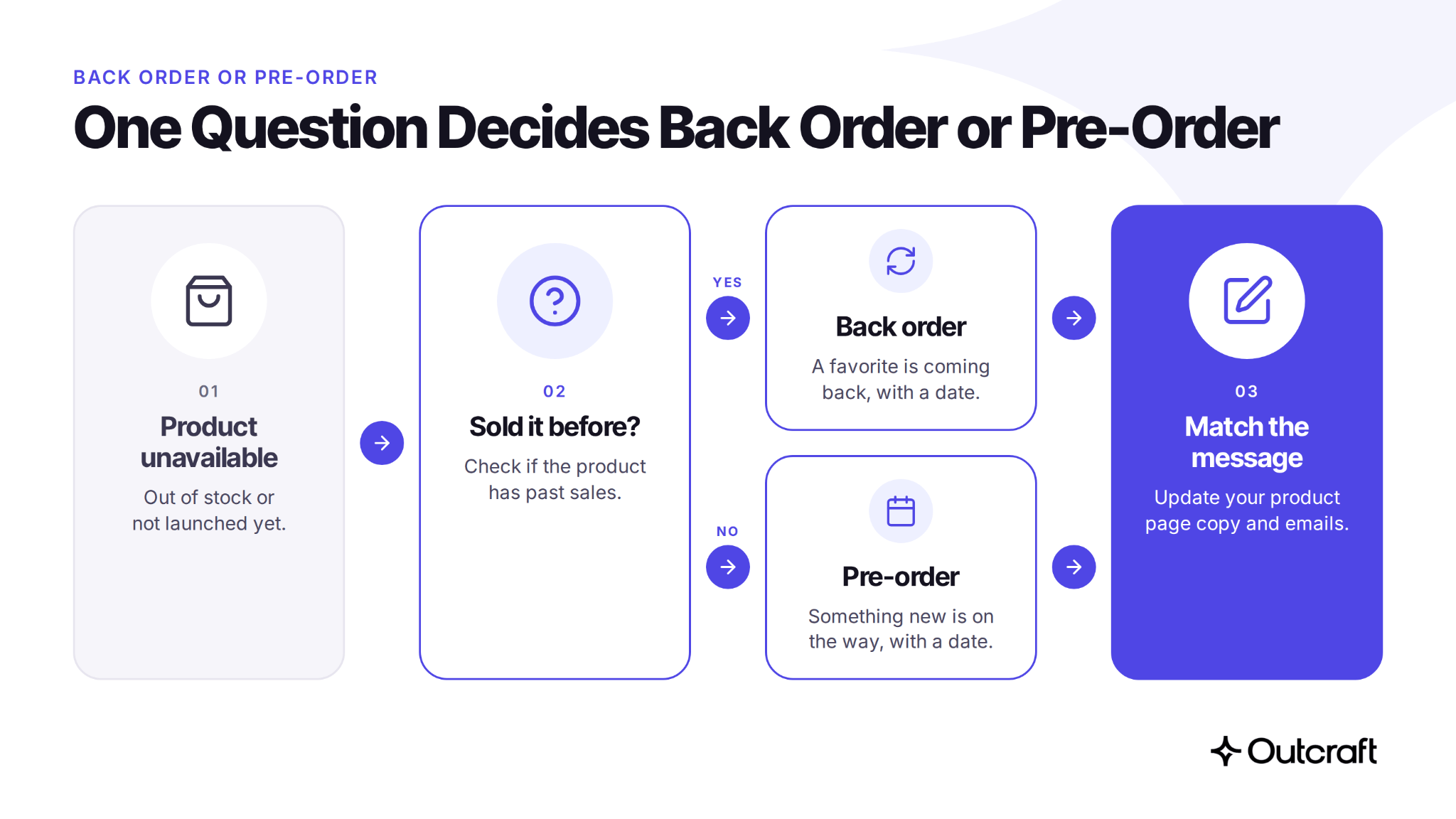
It might seem as though Shopify treats back orders and pre-orders the same way. But behind the scenes, they differ technically. They solve different problems, and mixing them up creates confusing product pages.
Here’s how they split.
- Back order: It works for a product that you’ve sold before and is now out of stock. Swap the sold-out button for a pre-order button, and shoppers can keep buying while you restock.
- Pre-order: This technique applies to a new product that isn’t out yet. Think of an iPhone launch, where people order before it ships and before they know everything about it.
The button looks the same either way. The message is what changes. With a back order, you’re telling shoppers a favorite item is coming back, and when. With a pre-order, you’re telling them something new is on the way, and when.
That’s why the slight difference matters. Your product page copy and your emails both change depending on which one you’re running. Get it wrong, and shoppers aren’t sure what they bought.
Here’s a quick check for any sold-out products.
- Have you sold it before? Treat it as a back order.
- Is it brand new? Treat it as a pre-order.
Once you know which one you’re running, pre-orders do more than fill a time gap. They can tell you what to make before you spend a dollar on your inventory.
Use Pre-Orders to Test Demand Before You Buy Stock
Some brands test demand in a sneaky way. They list a product they don’t have and take orders. Then they refund the money or blame shipping delays while they decide whether to order stock.
It’s a bad idea because shoppers paid for something that doesn’t exist yet, and nobody told them. That hurts trust, and it usually ends in negative reviews.
A pre-order runs the same test, just honestly. Shoppers know what they’re buying and when it ships, and you see real demand before you spend anything on inventory. It can also help your cash flow.
You can even send Meta ads to a pre-order landing page to see whether a new product sticks. If people buy, you stock more. If they don’t, you’ve lost a few ad dollars instead of a warehouse full of stock.
Seasonal drops are a great example of how well this works. Plenty of stores run on collections that launch a few times a year. Each drop sells on pre-order, and the numbers from the last one set the order for the next.
Here’s what that looks like with a Christmas sweater.
- You put up several designs.
- Shoppers pre-order the ones they like.
- You make exactly what is sold.
- Nothing is overbought, and nothing is oversold.
You also get better quality than print-on-demand, which is the usual alternative for this kind of drop. If I were launching a new design, this is the first thing I’d do.
One honest limit: this only works when you can commit to a ship date. If you can’t, hold off on pre-orders until you can.
But pre-orders only help if merchants actually turn them on when a product is out of stock, and in our experience, plenty of stores don’t. So why do so many merchants still show a sold-out sign?
Why So Many Stores Still Show a Sold Out Tag
Many stores carry long lists of out-of-stock products and lose money on them every month. Yauheni looked across a range of stores and saw the same pattern. Many items sit in sold-out status, with no way for shoppers to buy them.
So why don’t more merchants fix it? Our research found two reasons that come up most.
- They don’t know it’s possible. Many store owners are new to Shopify. Shopify doesn’t handle pre-orders well on its own, so they try a workaround and hit a wall. This is the most common reason.
- Their setup is too custom. Bigger stores often run workflows that off-the-shelf apps don’t fit. K1 Apps builds custom setups for these stores.
Then there are the workarounds, and they cost more than they save.
- Listing 60-day shipping on a product you don’t have in stock.
- Overselling and apologizing later.
Both lead to bad reviews, refund requests, complaint emails, and extra support time. You end up spending more hours fixing orders than a proper pre-order setup would have taken.
A proper setup avoids most of that. But it only works if shoppers trust you, because they’re paying today for something that ships later.
Pre-Orders Only Work If Shoppers Trust You
A pre-order asks someone to pay now for something that ships later. If anything feels unclear, they hesitate. Or they complain later. Without clear communication, you get refunds and orders that go wrong.
Every pre-order page and email needs these four things.
- A clear label that says it’s a pre-order.
- The expected ship date.
- What happens if it’s late.
- Your refund policy.
And if anything slips, tell shoppers right away. Send the update the moment you know. Don’t wait for them to ask.
Even with a clear page, questions still come up. Shoppers want to know a few things.
- Is this legit?
- When will it arrive?
- What if it’s late?
- Can I get my money back?
Those are the moments when a shopper decides to buy or leave. That’s where Outcraft comes into play. It is an AI sales team for e-commerce brands.
Its AI sales agents answer questions like these right away, by phone, email, message, or chat, 24/7. Shoppers get a straight answer, and the order goes through.
Outcraft can also reach out first if you want. If a shopper starts a pre-order checkout and leaves, an agent can call to find out what stopped them and send a checkout link on the call.
That’s abandoned checkout recovery for pre-orders, and it turns a hesitant shopper into a completed order. The AI agent picks the channel that fits each shopper based on your instructions. Most shoppers don’t even realize it’s AI until you tell them.
Here’s how the process works. The K1 PreOrder app sets up the pre-order. Outcraft handles the questions around it. Each one covers a different part of the same problem.
Trust covers the shopper’s side. But what about yours? How you set up pre-orders matters as much as the app you pick.
Set Up Pre-Orders Like a Business Decision, Not a Tech Task
Installing the app takes a few minutes. The hard part is deciding how you want to sell. If you list a pre-order at full price, sales may stall. So Yauheni suggested offering shoppers two options.
- Pay in full for a discount: List the pre-order product with a discount, say 30%, available only to shoppers who pay the full amount upfront. Shoppers who’d rather pay once get a reason to do it.
- Pay a small deposit: Ask for a small deposit now, say 15%, to confirm they’ll buy the product when you restock. They pay the rest when it ships.
If you’re newer to this, those choices aren’t obvious. That’s normal. K1 PreOrder works inside Shopify Sidekick, so you can set it up by describing what you want in plain words.
In Will’s opinion, it also helps to talk to the people behind the software you buy. If a company offers a free 15–20 minute call, take it. They’ll show you features you wouldn’t find on your own.
Here’s a number that backs this up. In the podcast, Yauheni said he answers about 90% of K1’s support tickets himself, and about 30% of the questions he gets are about the business, not the tech.
Those are his own estimates, but the point holds. Many merchants don’t need help with a setting. They need help deciding how to sell, so bring your business questions to those calls.
Once your setup is clear, you need a plan for the year’s busiest weeks. So let’s look at Black Friday and Cyber Monday.
Your Black Friday and Cyber Monday Pre-Order Plan
Sales spikes move fast. You can’t manage stock by hand when orders come in every minute. Here’s a plan you can adjust to your store. The numbers below are examples, not rules.
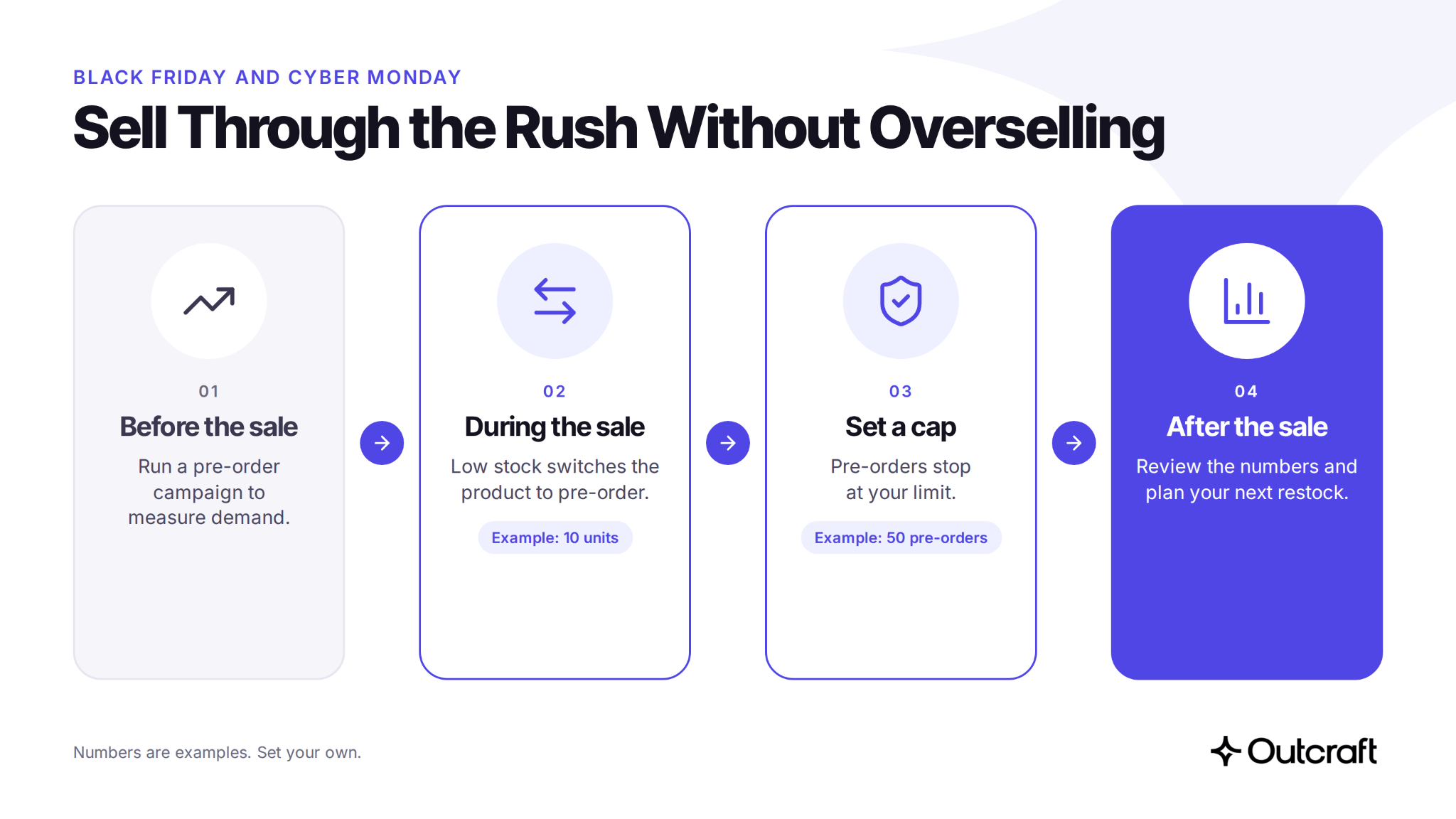
- Before the sale: Run a pre-order campaign to measure demand. Use the numbers to plan how much stock to order.
- During the sale: Set an automatic rule that switches a product to pre-order when stock drops below a number you choose. For example, 10 units.
- Set a cap: Limit how many pre-orders you’ll take, such as 50. That way you never promise more than you can deliver.
- After the sale: Review your pre-order numbers and use them to plan your next restock.
Why should you bother? Because when your ads are working, you want to keep spending. But running out of stock kills that. Without a rule, your ad dollars send shoppers to a sold-out page.
On the other hand, plenty of stores oversell during big sales because everyone wants the revenue. It’s tempting. Still, shoppers have a better experience when they know they’re pre-ordering, and you avoid the refunds that come with overselling.
With a rule and a cap, you keep selling without overselling. For more on how ad traffic performs after the click, read how to get more revenue from your ad spend.
Not sure where your own store is losing sales right now? You don’t have to guess.
Run an AI Audit on Your Store
To run a proper audit, Yauheni suggests connecting your store to Claude or ChatGPT, or asking Shopify Sidekick directly, since it’s already in your store. Then ask plain questions.
- What’s selling, and what isn’t?
- Where am I losing money?
You’ll likely spot fixes you hadn’t thought of, so treat the answers as leads to check. Make a change, then check the result. Then do it again.
If you’d like a starting prompt to run an audit, message Will Nauseda or Yauheni Kaziak on LinkedIn. They’ll send you a custom prompt.
Start With One Sold Out Product
Let’s get back to the example of the XL shirt. This time, the shopper sees a pre-order button, pays, and gets a shipping date.
That way, the store keeps the sale and knows how many to expect. Pre-orders are one of Shopify’s most overlooked tools.
They test demand and protect your ad spend. If you want to try a Shopify pre-order app, check out K1 PreOrder on the Shopify App Store. Then bring one week of abandoned checkouts and see how many conversations Outcraft’s AI agents can recover.
.svg)
Ready to Recover More Revenue?
See how Outcraft's AI agents turn failed payments, abandoned checkouts, and support conversations into revenue.

Summarize with AI